Help center
Miriad is a review and approval platform for your creative files (PDF, images, video, 3D, and more). It keeps comments, versions, and decisions together instead of scattering them across emails and chat.
Here is a simple overview of how it works, so you can get started without any prior setup knowledge. If you can drop in a file and read a comment, you already have what matters most.
Discover Miriad
Miriad is built around three notions: projects, Circles, and approvals.
Projects and files
A project is your workspace. A file is any document you want annotated or approved: PDF, image, video, 3D, and more. Add it to a project. It stays private until you share it.
Circles
A Circle gathers the people who should view, comment, or approve. Sharing goes through Circles: each one only sees what concerns them.
Approvals
When review is done, the people allowed to sign off approve the file. Each approval is dated and kept, so you always know where a document stands.
Two ways to get started, depending on your situation right now. Receiving a link doesn't lock you into a guest role: you can later create your own organization and launch your own projects.
You drive approvals
In practice, most teams start with three actions:
- Create a project and upload the files that need review
- Create a Circle and invite the right people
- Share the file with that Circle, then follow feedback, versions, and approvals
Someone sends you a file
Open the link you received, view the file, comment if needed, then approve. No setup is required for this step.
- Open the file from the link you received
- View the content
- Annotate (optional)
- Approve when ready
To share files and run your own approvals later, simply create your organization from Miriad.
Organization settings (members, plans, billing) are managed from the account. See also Accounts and pricing.
Whatever the format, the flow stays the same: open the file, annotate, share through a Circle, approve. Only the annotation tools change by file type.
All formats can be uploaded and previewed. Precise annotations are available on the most common formats:
- Images: JPEG, PNG, SVG…
- Documents: PDF
- Video: annotate directly on the player
- Design: Adobe Illustrator files
- 3D: interactive models
Yes. On phone or tablet, you get the same logic as on the web: projects, files, Circles, annotations, and approvals.
Open a share link, review a document, leave a comment, or approve - without learning a different interface. The experience is built to stay smooth away from your desk.
For teams validating large volumes of visual content
- Marketing & communication departments
- Creative directors & in-house studios
- Legal department
- Project managers
- Freelancers
For sectors where visual fidelity is critical
- Luxury, spirits & beauty (brand identity, product launch)
- Architecture & construction (plans, 3D renders)
- Retail & e-commerce (product visuals, omnichannel campaigns)
- Healthcare (medical brochures, regulatory files)
- Creative & print agencies (press, magazines, catalogs, multi-client, long-running projects, version control)
- FMCG (shoots, packaging)
Projects and files
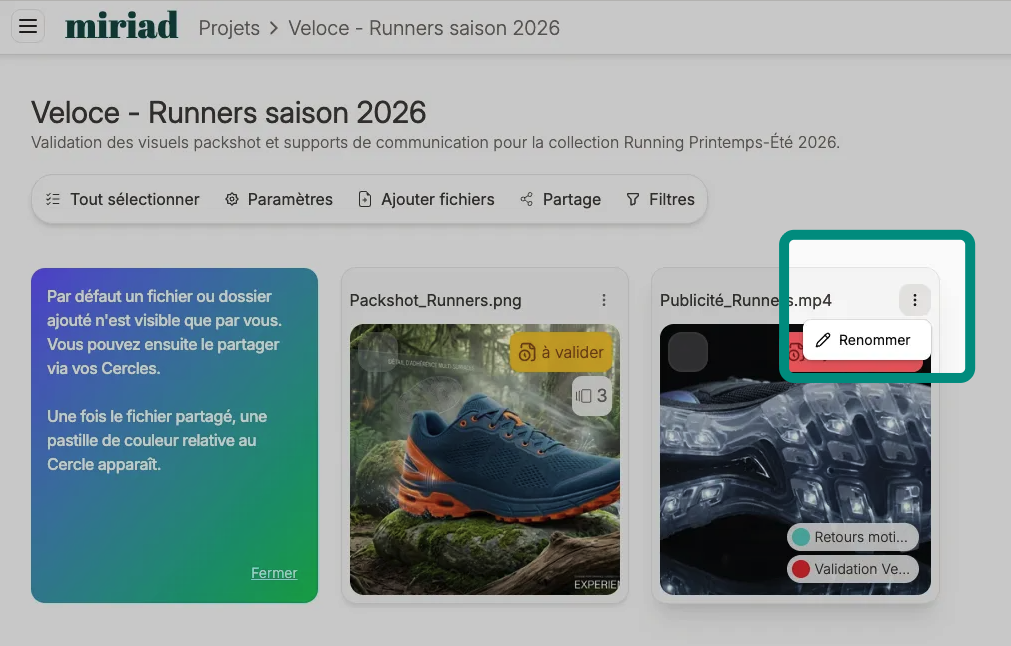
Drag and drop your folders from your computer's file explorer: the folder structure is preserved. You can then rename folders and files directly in Miriad.
Use the Rename action on the file or folder, directly in Miriad.
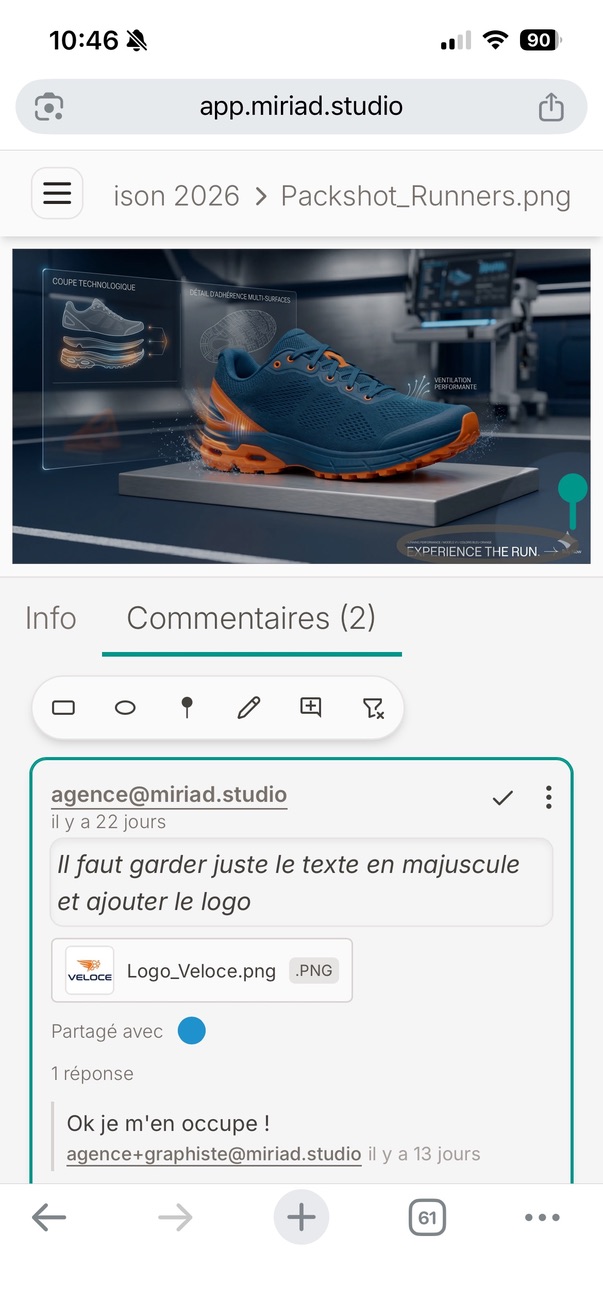
Open the file, then use the toolbar: a general comment, or format-specific tools (rectangle, ellipse, pin, freehand; text selection on PDFs).
When you post, pick at least one Circle: only its members see the annotation. For a private note, use a Circle where you are the only member.

On the video player, leave a comment at a moment or on a timeline segment. You can also mark up the frame like an image (pin, shape, drawing).
As with other files, choose the Circle(s) that should see your feedback.
Upload a new version with the same filename, then add a suffix (V2, V3...) from within the app. Miriad keeps every iteration instead of overwriting the previous one.
You keep a clear record of who approved what. Handy after a tweak, creative feedback, or a client-requested change. Each Circle still sees the version shared with it.
Open the file's version history, then switch from one version to another to review them. Each Circle keeps seeing the version that was shared with it.
Export your presentation as a PDF from Google Slides or PowerPoint, then upload the PDF to Miriad. You get annotations and version tracking.
Sharing and Circles
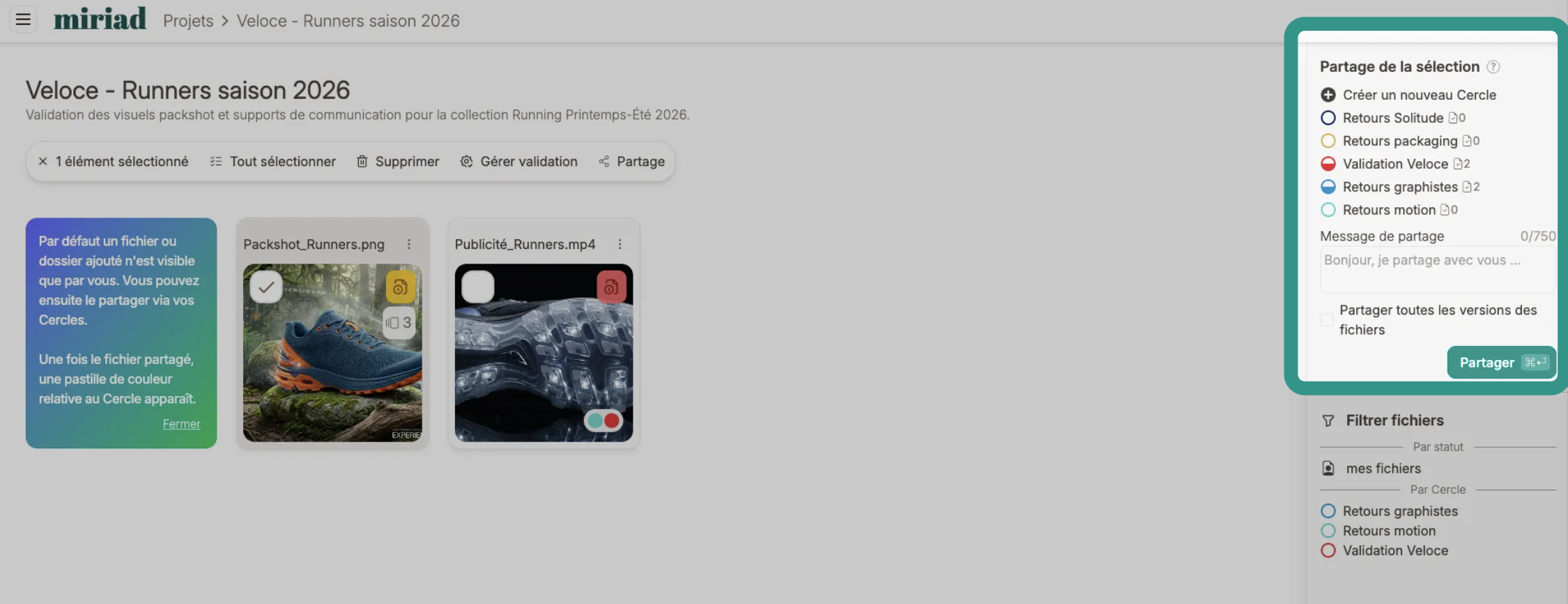
To share a file, first create a Circle (or use an existing one). Then select the file in your project and check the Circle you want to share it with. Circle members get access immediately.
Approval
Circle validators can approve any file shared with them, with no extra action from you. Once sharing is done, the "Manage approval" button appears: it explicitly marks that approval is expected. The file then shows up in the Home dashboard of the people involved.
Create one Circle per step. Agency example: an internal feedback Circle (creative / project manager), a client approval Circle, then an HD production Circle. Each step stays confidential from the others.
Each approval on Miriad is dated and archived, creating a clear audit trail in case of dispute.
Accounts and pricing
Miriad operates on a freemium model.
This means you can use the platform for free with access to all main features, but with certain limits. For a free account, this means 2 projects and 2 Circles.
For users wanting unlimited access and advanced features, a paid subscription is available.
Individual plans are for solo use: 1 organization member. Team plans let you invite colleagues, share projects, and bill per member.
No. Guests (clients, contractors…) join your Circles for free. You only pay for members of your organization.
Paid plans are billed per user at the displayed price. Only organization members are billed, not external guests.
Yes. You can upgrade or downgrade at any time, with no hidden fees.
No. They open your sharing link, approve in one click, and later sign back in via a magic link sent by email - no password to create.
As an owner, open organization settings, then Members. Invite colleagues by email: they join your organization and share your projects according to your plan.
This is separate from external guests in a Circle, who stay free and outside billing.
Need a specific answer ?
If you couldn't find your answer here, email us at support@miriad.studio.